Training Models with the Segmentation Wizard
With the Segmentation Wizard, you simply paint the different features of interest within a limited subset of your image data and then train models to identify objects according to a predefined set of rules. The most promising model can then be fine-tuned and published for repeated segmentation tasks. The main tasks for training semantic segmentation models with the Segmentation Wizard are labeling classes in frames, choosing a model generation strategy, and then training the models within the selected strategy.
 Labeling Frames for Training
You can use any of the segmentation tools available on the ROI Painter and ROI Tools panels to label the voxels within a frame for training a model (see Labeling Multi-ROIs). The classes and labels defined for training are available in the Classes and labels box, as shown below.
Classes and labels box

Sparse labeling… In this case, only a limited number of voxels are labeled. However, after the first training cycle is completed or stopped, you can then populate frames with the best prediction, edit the results, and then continue training. An example of sparse labeling is provided below.
Sparsely labeled frame

Dense labeling… In this case, all voxels within a frame are labeled. An example of a fully segmented frame is provided below.
Densely labeled frame

Enabling Visual Feedback and Checkpoint Caches
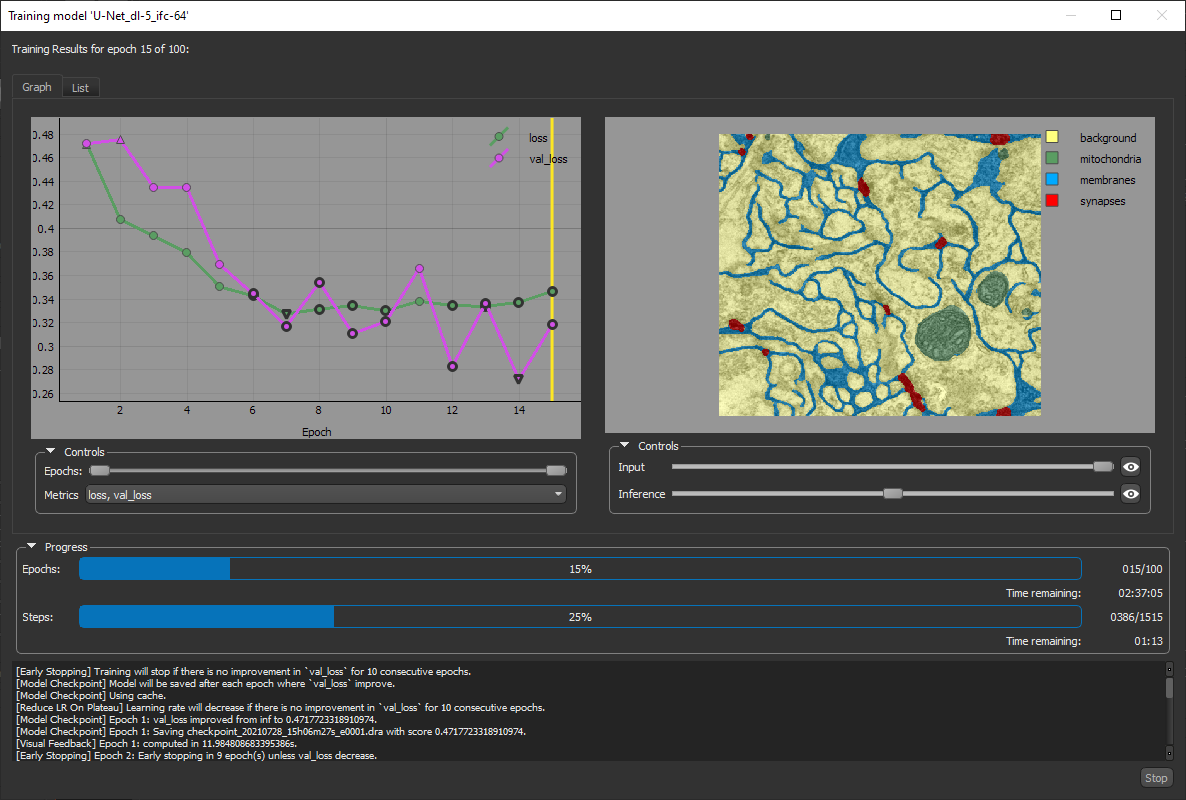
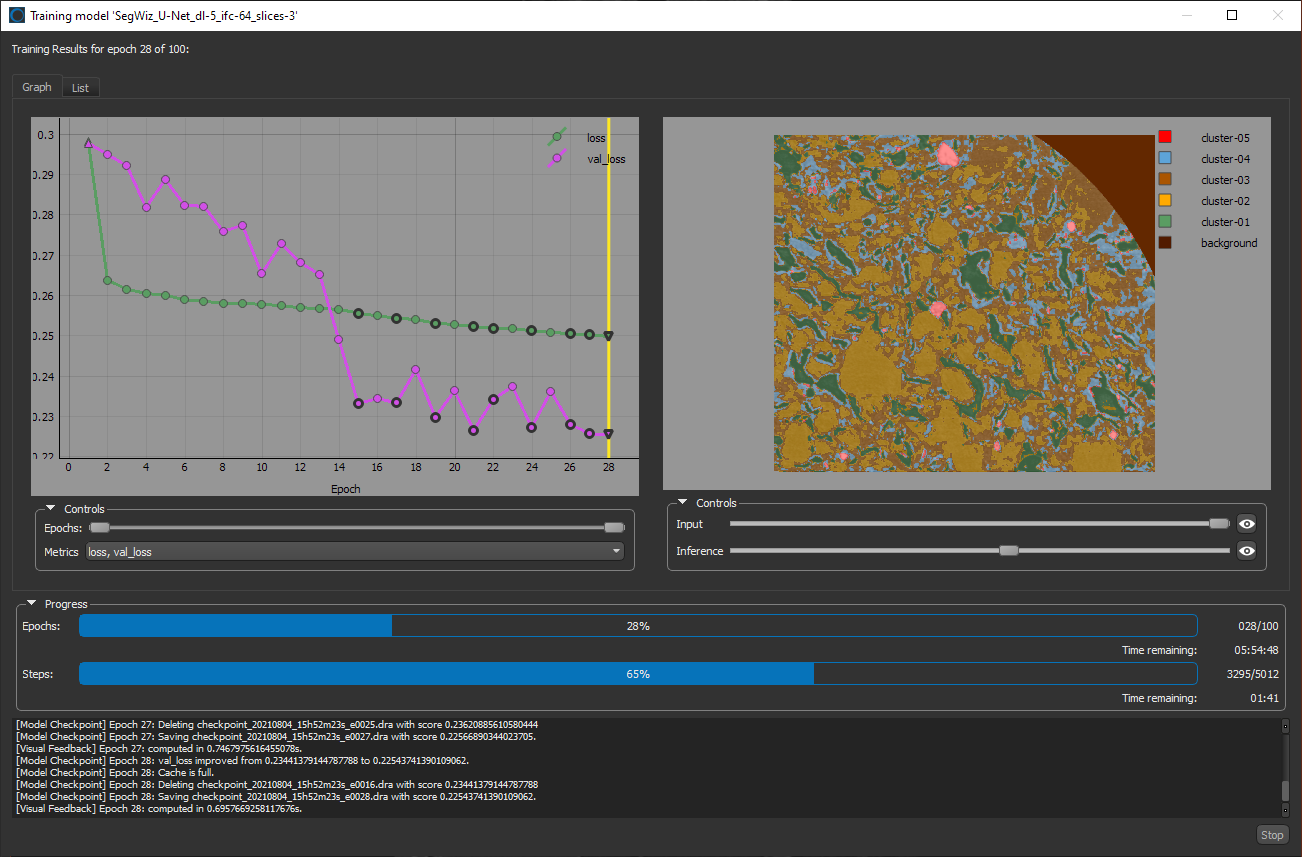
To help monitor and evaluate the progress of training deep models, you can designate a frame for visual feedback. With the Visual Feedback option selected, the model’s inference will be displayed in the Training dialog in real time as each epoch is completed, as shown on the right of the screen capture below. In addition, you can create a checkpoint cache so that you can save a copy of the model at a selected checkpoint (see and Saving and Loading Model Checkpoints). Saved checkpoints are marked in bold on the plotted graph, as shown below.
Training dialog
- Add a frame to an area that does not include any labels.
- Double-click inside the corresponding User for box and then choose Monitoring in the drop-down menu, as shown below.

Working with Multiple Datasets
If you are work with 2D datasets, it may not always be possible to label an adequate number of pixels for training and validation on a single image. In this case, you can load multiple datasets to train your model.
Do the following to load multiple datasets in the Segmentation Wizard:
-
Choose Artificial Intelligence > Segmentation Wizard on the menu bar.
The Data Selection dialog appears.
-
Click the Add Dataset button to add the required dataset(s), as shown below.

-
Choose an image or images for each input dataset.
Training Models
You can start training models for semantic segmentation in the Segmentation Wizard after you have labeling at least one frame.
- Do one of the following:
- On the Data Properties and Settings panel, right-click the image data that you want to train the models with and then choose Segmentation Wizard in the pop-up menu.
- Choose Artificial Intelligence > Segmentation Wizard on the menu bar.
In this case, you can choose to create a new Segmentation Wizard session or to open a loaded Segmentation Wizard session (see Loading Session Groups).
The Model Selection dialog, shown below, appears.
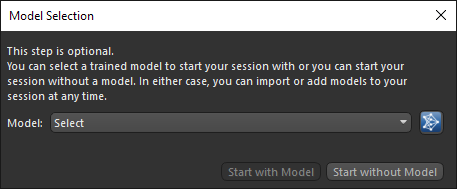
- Do the following in the Model Selection dialog, as required.
- Select a previously trained model in the Model drop-down list.
- Click the Open Remote Library
 button and then download a ready-to-use model in the Remote Library of Ready-to-Use Segmentation Models dialog. See Ready-to-Use Deep Models for additional information about working with ready-to-use models.
-
Do one of the following:
- Click the Start with Model button if you want to start the session with the selected previously trained model. In this case, the trained model will appear on the Models tab.
- Click the Start without Model button if you want to start the session without a trained model. In this case, you generate new models to start with or you can import a trained model.
The Segmentation Wizard appears onscreen (see Segmentation Wizard Interface).
- Adjust the view so that the area you plan to label first is maximized in the view (see Using the Manipulate Tools).
Note Refer to the topic Window Leveling for information about adjusting the brightness and contrast.
- Click the Add
 button in the Frames box.
A new frame is added to the main view in the workspace and two classes appear in the Classes and labels box. You can adjust the size and position of the frame, if required.
Note If have already prepared a multi-ROI with the required labeling, you can fill the frame by right-clicking and then choosing Fill Frames from Multi-ROI. In this case, you then need to select the multi-ROI in the Choose a Multi-ROI dialog, shown below.

Note Only labeled multi-ROIs that have the same geometry as the input dataset will be available in the drop-down menu.
- Do the following, as required:
- Add additional classes.
To add a class or classes, click Add in the Classes and labels box and then choose Add Class or Add Multiple Classes. If you are adding multiple classes, choose the number of classes to add in the Add Classes dialog.
- Rename the classes and change the assigned colors, recommended.

- Label the classes with the ROI Painter tools, as required (see Labeling Frames for Training).
You can deploy two different labeling strategies to train new models — sparse labeling and fully segmented patches. In many cases, you should be able to achieve comparable results with sparse labeling to those obtained by training with densely labeled ground truths, which can be much more laborious to obtain.
Note If you are training with multiple modalities, you can switch the image data shown in the frame by selecting another item in the Image modalities box, as well as with keyboard shortcuts Show Next Image Modality and Show Previous Image Modality.
Note If you are training with multiple datasets, you can switch the image data shown in a frame by selecting another dataset in the Data sets box, shown below.
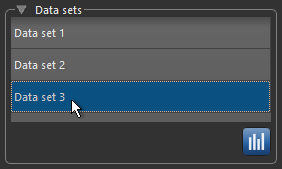
- Add additional classes.
- Add additional frames and continue labeling classes, as required.
- Add a frame for visual feedback, if you plan to generate deep models (see Enabling Visual Feedback and Checkpoint Caches).
- Designate a usage for each frame, as required (see Frames and Frame Usage).
- Click Train.
The Model Generation Strategy dialog appears if you started the session without a trained model (see Model Generation Strategies).
- Select a strategy, as required.
If required, you can deselect any of the models in the selected strategy. Deselected models will not be generated when you click Continue.

You should note that greyed out models cannot be generated currently. This could be due to sparse labeling, inadequate labeling, or another issue.
Note If required, you can edit the parameters of deep models and the feature presets of machine learning (classical) models for the current Segmentation Wizard session (see Deep Learning Model Types and Machine Learning (Classical) Model Types).
- Click Continue.
The selected models are generated one-by-one and then the dataset(s) is validated and automatically split into training, validation, and test sets. For deep models, you can monitor the progress of training in the Training Model dialog, as shown below.

During deep model training, the quantities 'loss' and 'val_loss' should decrease. You should continue to train until 'val_loss' stops decreasing. You can also select other metrics, such as 'ORS_dice_coefficient' and 'val_ORS_dice_coefficient' to monitor training progress.
Note You can also click the List tab and then view the training metric values for each epoch.

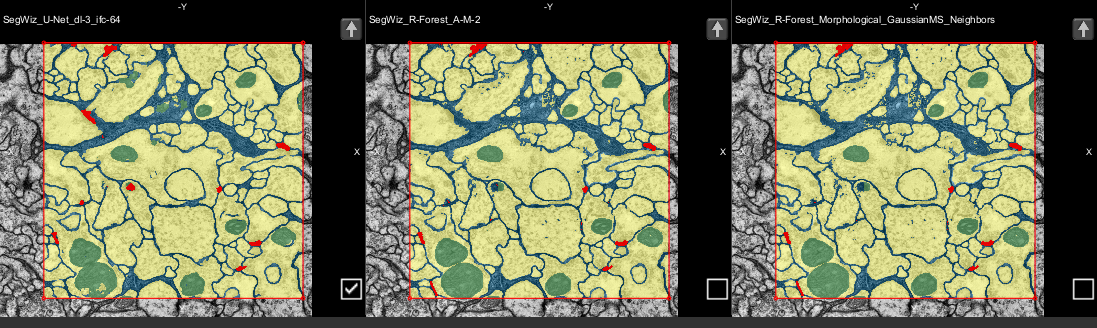
When training is completed or stopped, up to the best three results appear at the bottom of the workspace.
- Evaluate the model predictions in the Prediction views, recommended.

Each model prediction view includes the name of the corresponding model and includes the following controls:
- Clicking the Up arrow fills the current frame with the selected model prediction.
- The Default Model checkbox lets you select the model that will be used to automatically fill frames whenever the 'Automatically fill new frames with best prediction' option is selected on the Settings tab (see Settings Tab).
Note The number of predictions shown is selectable on the Models tab (see Models Tab).
- If the results are not satisfactory, you should consider doing one or more of the following and then retraining the model(s):
- Add an additional frame or frames to provide more training data.
Note You can fill additional frames from a multi-ROI or from a prediction. These options are available in the pop-up menu for frames.
- Add a different model (see Generating New Models).
- Adjust the parameters of a model (see Training Parameters for Deep Models).
- Add an additional frame or frames to provide more training data.
- When the model or models are trained satisfactorily, click the Exit button.
You can then select the model or models that you want to publish in the Publish Models dialog, shown below.

Note You need to 'publish' a model to make it available to other features of Dragonfly, such as Segment with AI (see Segment with AI) and the Deep Learning tool (see Deep Learning Tool).
The Segmentation Wizard session is saved and a new session group appears on the Data Properties and Settings panel (see Segmentation Wizard Session Groups).